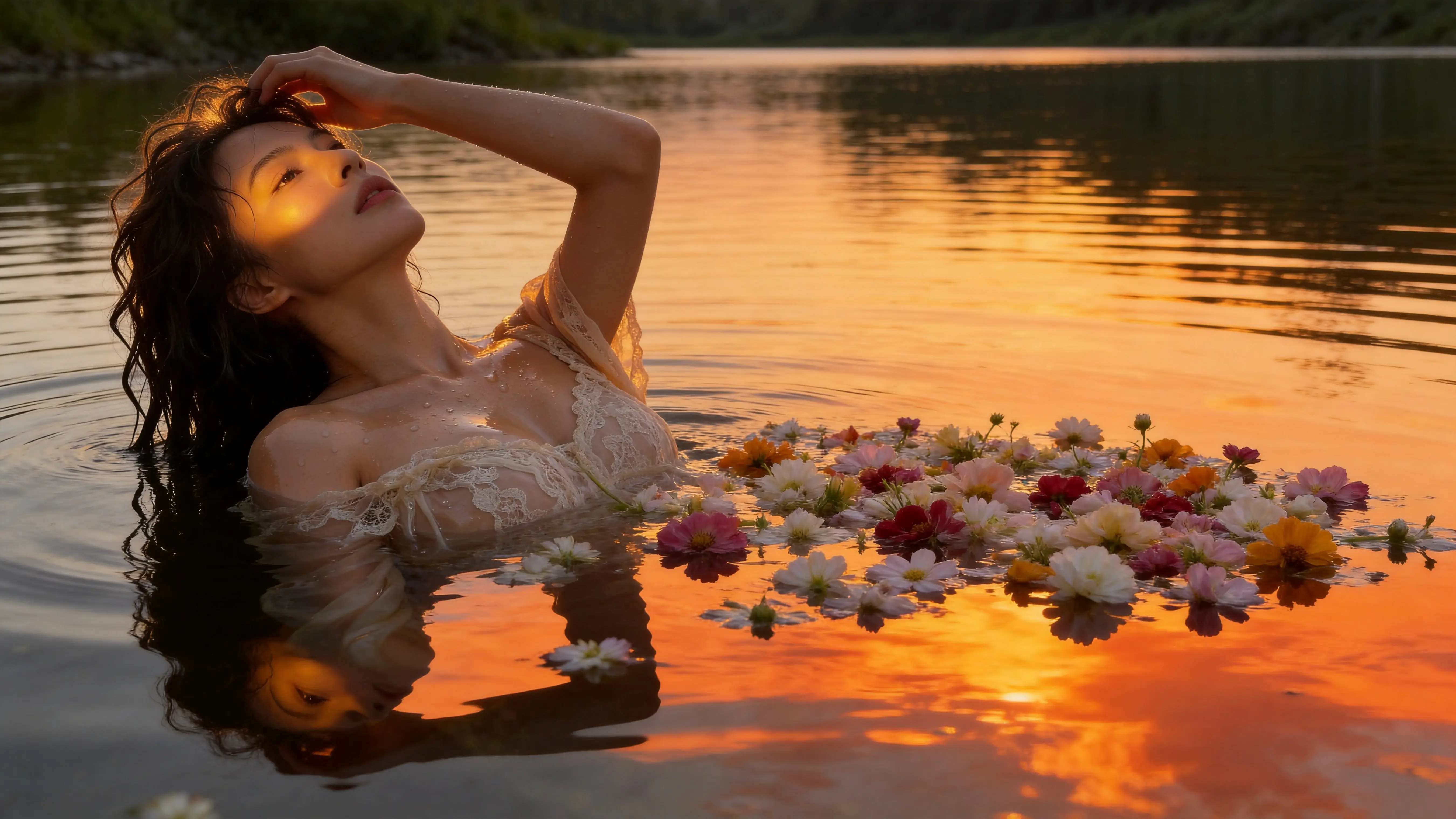
Text to Image for Campaigns, Product Visuals, Posters, and Creative Concepts
ImageZ is an AI image editor that helps you generate images, edit existing visuals, remove backgrounds, and turn images into videos in one workflow.
Text to Image in ImageZ
What is Text to Image
Text to Image in ImageZ is a focused prompt-based image generation workflow for anyone who wants to turn words into campaign visuals, product imagery, portraits, posters, and concept art without starting in a cluttered studio view. It captures the prompt-driven intent first, then hands the user into the apps workspace with the right creation flow already prepared.
Text to Image Use Cases
What can you do with Text to Image
Use Text to Image to turn prompts into campaign-ready scenes, launch directions, ad concepts, and branded visuals when the team needs to move faster than a traditional concepting cycle.
Why ImageZ
Why choose ImageZ for Text to Image
Text to Image should do more than prove that an AI image generator exists. It should help users move from prompt to usable image direction fast, then keep the strongest results inside a real creation workflow.
A clearer entry for prompt-based image generation
People searching for Text to Image usually want one thing: turn a prompt into images without getting lost in unrelated controls. ImageZ meets that intent with a dedicated landing page built around prompting, output quality, and creative direction.
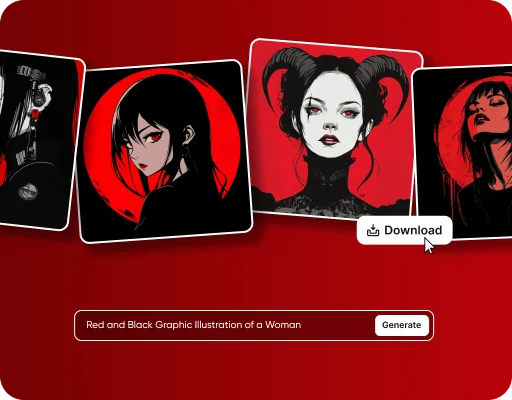
A stronger workflow for prompts, ratios, and image quality
The current Text to Image workflow supports prompts, common aspect ratios, quality selection, and multiple image-generation models in the broader workspace. That makes the page useful for both quick ideas and more production-minded image creation.
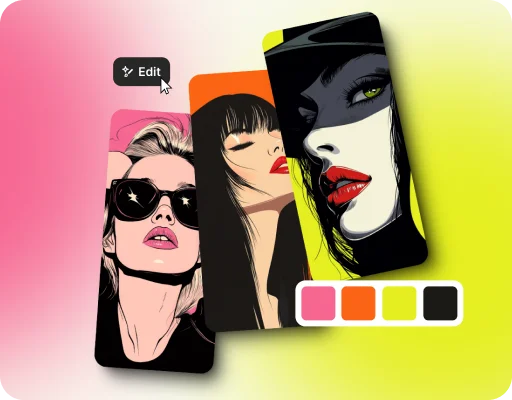
Keep generating, comparing, and refining inside ImageZ
Text to Image is not the end of the workflow. Users can continue iterating inside ImageZ, compare more directions, and move the generated result into image editing, background removal, and upscale workflows when the first version is ready.
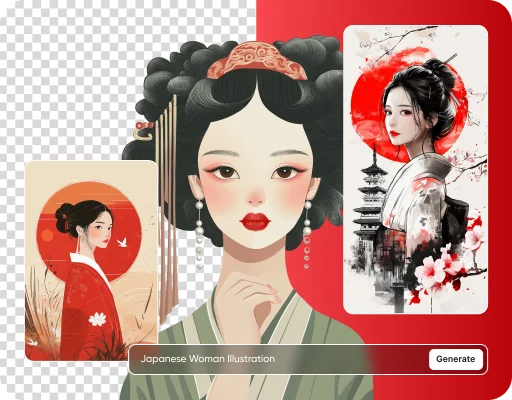
Start your Text to Image workflow fast
How to use Text to Image
Use Text to Image in three direct steps: describe the image you want, shape the generation direction, and continue in the ImageZ apps workspace to generate, compare, and export the strongest result.
- 01
Describe the image you want to generate
Start with the subject, style, scene, lighting, mood, or output you want so the Text to Image workflow is grounded in a clear creative target from the very beginning.
- 02
Shape the prompt into a stronger direction
Use the page to frame a stronger prompt direction, then carry that intent into the apps workspace where ratio, quality, and model choices can help the result get closer to what you actually need.
- 03
Open Apps and keep iterating
Move into the ImageZ workspace with Text to Image already prepared, then keep generating, comparing, refining, and exporting the version that best matches your campaign, product, portrait, or poster goal.
More Than Just Text to Image
Explore the next ImageZ workflows for transforming, cleaning up, sharpening, and refining the images that begin as Text to Image prompts.
Image to Image
Transform existing images with prompts, restyle visuals, remix campaigns, and create variants in one focused image to image workflow.
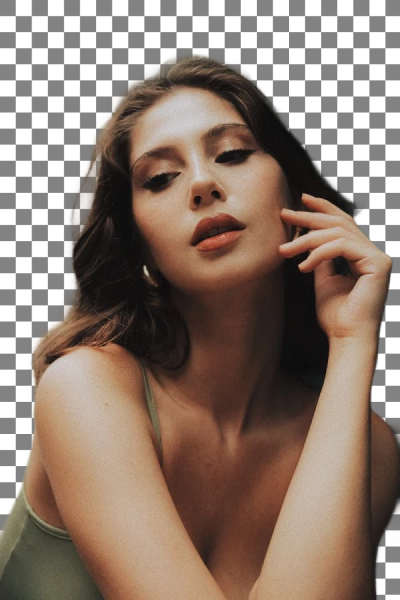
AI Background Remover
Remove backgrounds from images, export transparent PNG cutouts, create clean product photos, and continue editing in one focused workflow.
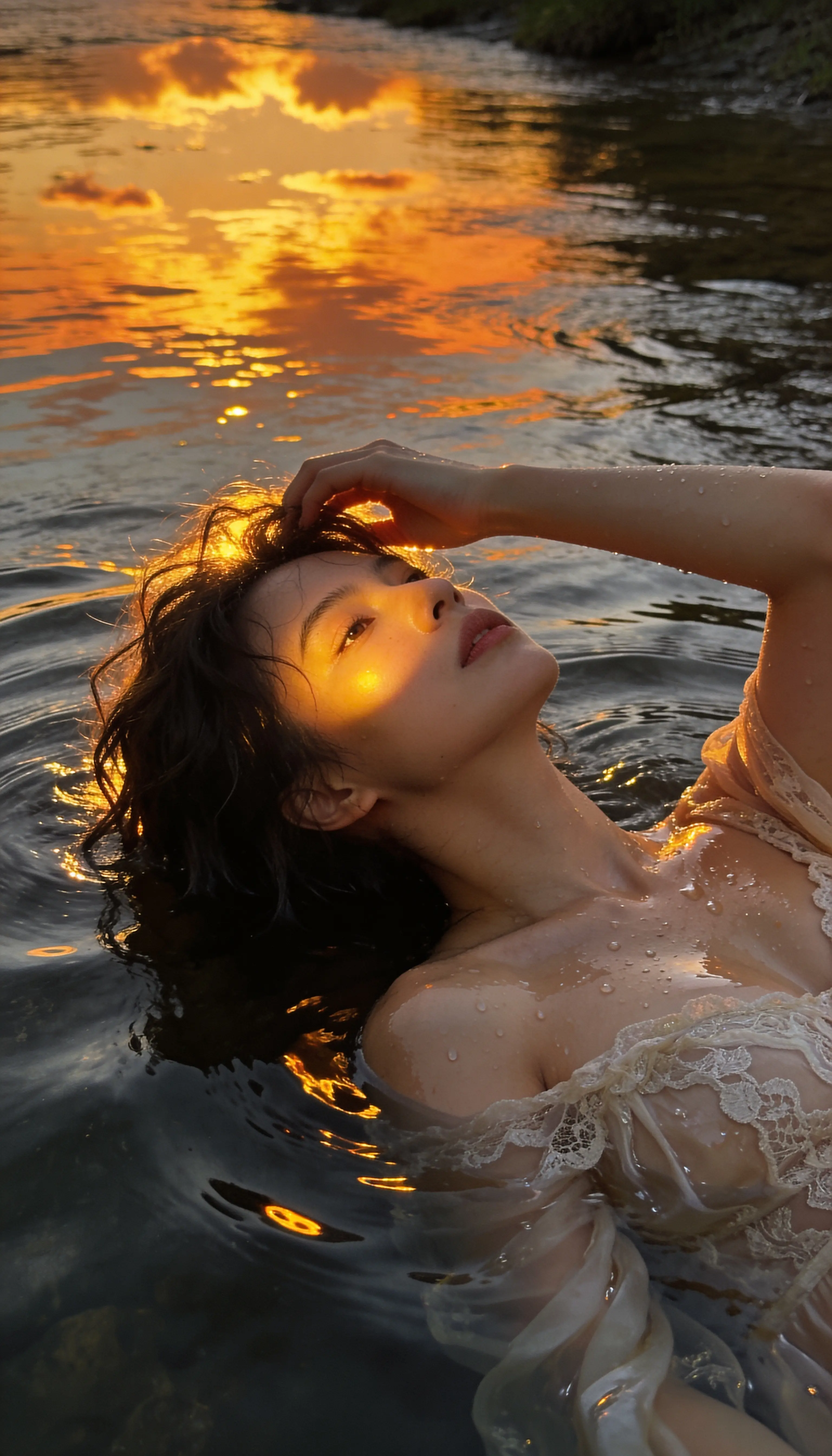
AI Image Upscaler
Upscale images, sharpen blurry visuals, improve detail for product photos and portraits, and continue editing in one workflow.
FAQs about Text to Image
Common questions about Text to Image, prompt-based generation, ratios and quality, and how this landing page hands the task into the ImageZ workspace.
1
What does Text to Image mean in ImageZ?
Text to Image in ImageZ is a focused landing-page entry for prompt-based image generation. It captures the prompt-driven search intent first, then routes the user into the matching apps workspace.
2
Can I generate images from text prompts in this workflow?
Yes. That is the core purpose of Text to Image in ImageZ. You describe the image through a prompt, then continue in the apps workspace where the actual generation flow runs.
3
Can Text to Image support different aspect ratios and quality levels?
Yes. The current workflow supports common aspect ratios, and the broader Text to Image setup also includes quality choices that help users move from rough direction to more usable output.
4
Is Text to Image useful for campaigns, product visuals, posters, and portraits?
Yes. Those are some of the clearest use cases because Text to Image is often used to move quickly from written idea to visual direction in marketing, product, editorial, and social workflows.
5
Can I generate multiple directions and keep iterating?
Yes. The broader ImageZ image-generation workflow supports repeated prompt exploration and small-batch generation, which makes Text to Image useful for comparing options before choosing the strongest image.
6
Does this page generate the image directly?
The landing page captures the Text to Image intent and forwards the request into the real ImageZ apps workspace, where the actual generation workflow runs.
7
What can I do after Text to Image generates the image?
Once you have a strong generated image, you can continue in ImageZ for image-to-image transformation, background removal, upscale, and other follow-up workflows instead of stopping at the first generation.
Continue from Text to Image into the ImageZ workspace
This landing page is built to capture Text to Image intent first. The actual prompt-based image generation workflow continues in the matched ImageZ apps workspace.