Image to Image for Restyles, Product Edits, Campaign Remixes, and Variants

ImageZ is an AI image editor that helps you generate images, edit existing visuals, remove backgrounds, and turn images into videos in one workflow.

Image to Image in ImageZ

What is Image to Image

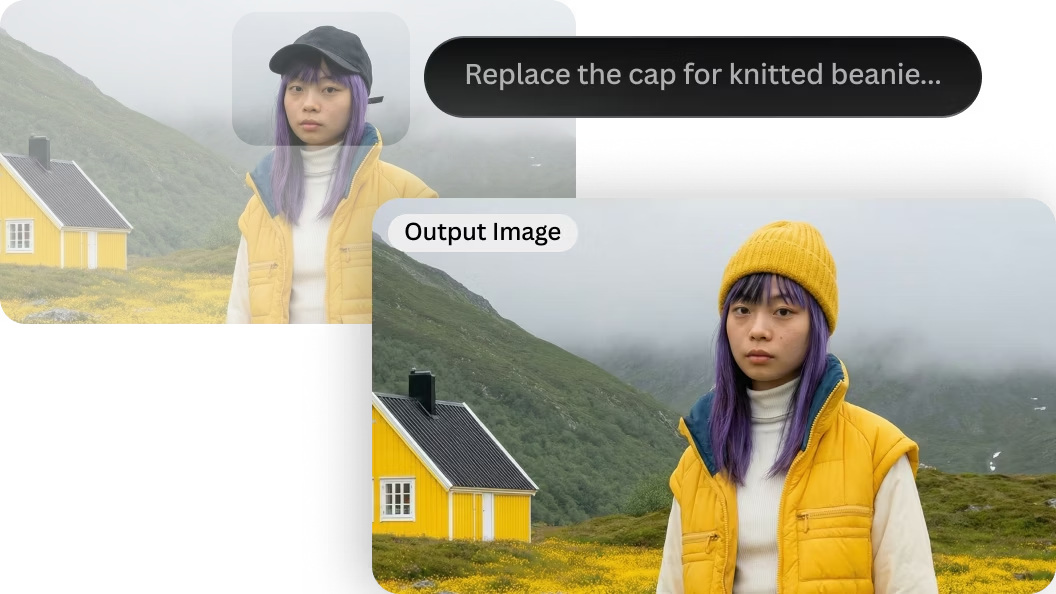
Image to Image in ImageZ is a focused workflow for transforming existing images with prompts instead of starting from zero. It is designed for restyling, controlled edits, structured changes, and reference-led iteration, then routes the user into the apps workspace with the right editing flow already prepared.

Image to Image Use Cases

What can you do with Image to Image

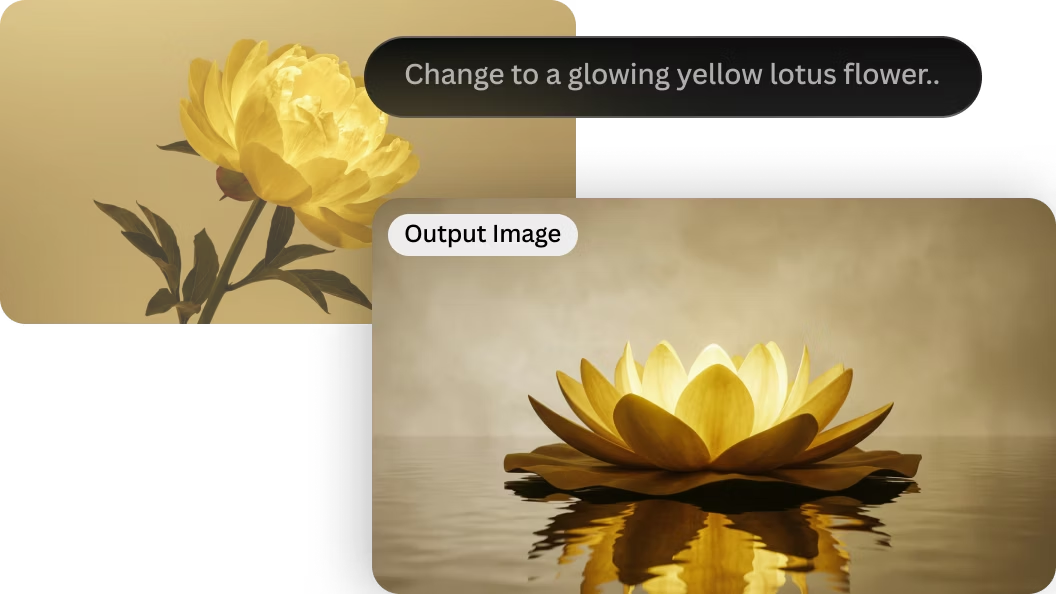
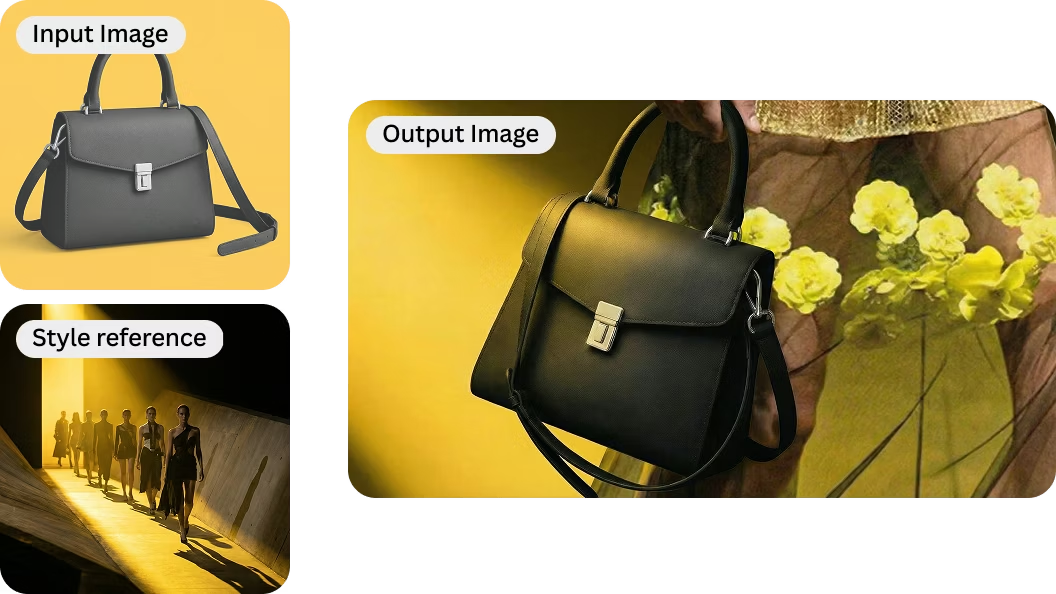
Use Image to Image to restyle a reference image into a new visual language while keeping the subject, framing, or core composition that made the original useful in the first place.

Why ImageZ

Why choose ImageZ for Image to Image

Image to Image should do more than prove that AI can edit a photo. It should help users transform existing visuals with more control, preserve what matters from the source image, and keep the result inside a broader image workflow.

A clearer entry for reference-led image editing

People searching for Image to Image usually want to work from an existing image, not from a blank canvas. ImageZ meets that intent with a focused landing page built around controlled transformation, editing, and restyling instead of unrelated generation controls.
A stronger workflow for prompts, references, ratio, and quality

The current Image to Image workflow supports prompts, multiple reference images, common aspect ratios, and quality selection. That makes it useful for both quick visual shifts and more deliberate controlled edits.

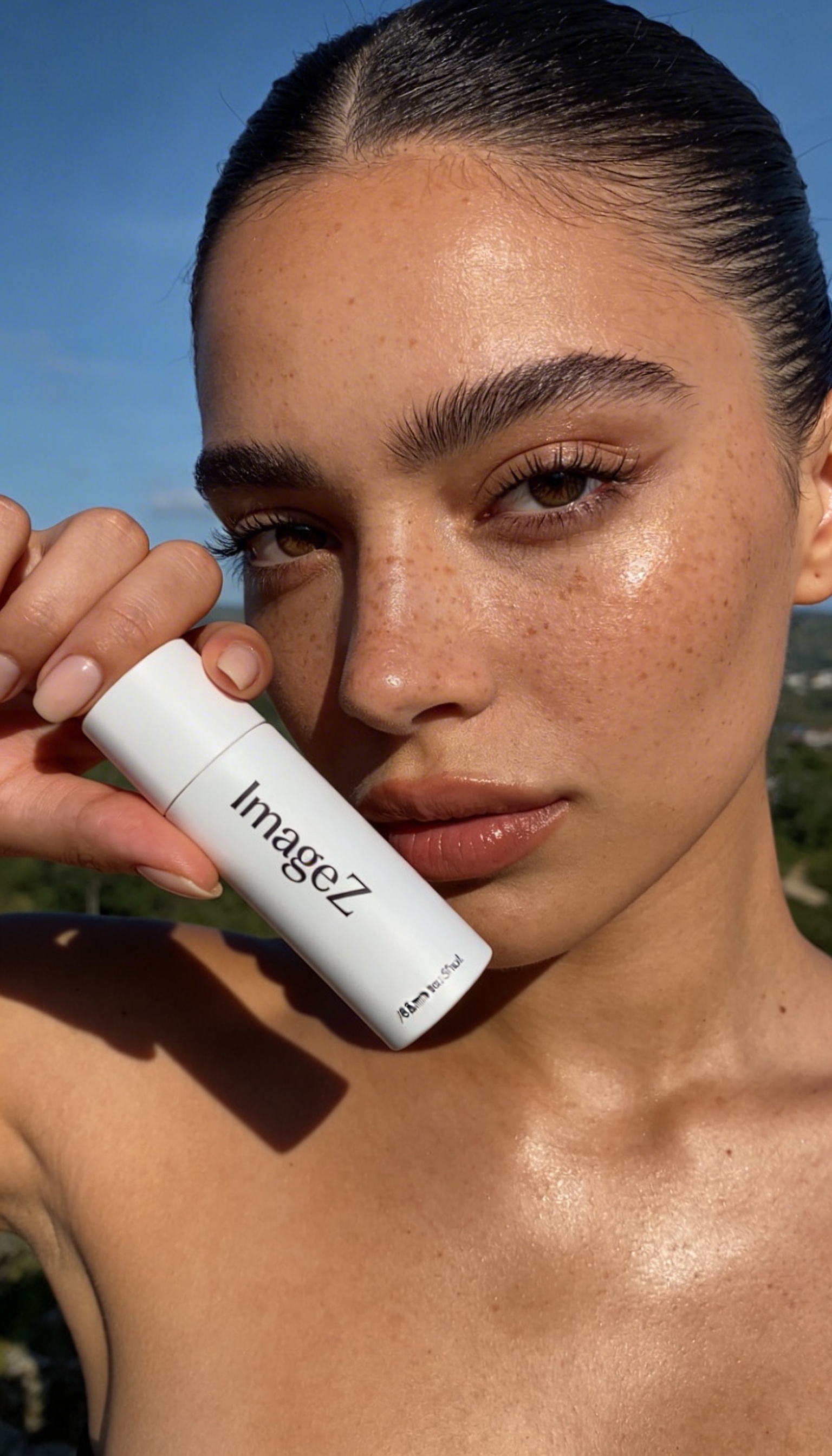
Image to Image example two

Keep the edited result inside the wider ImageZ workflow

Image to Image is not the end of the process. Once the restyle or controlled edit works, the result can continue into background removal, upscale, and other follow-up image workflows instead of stopping at the first variation.

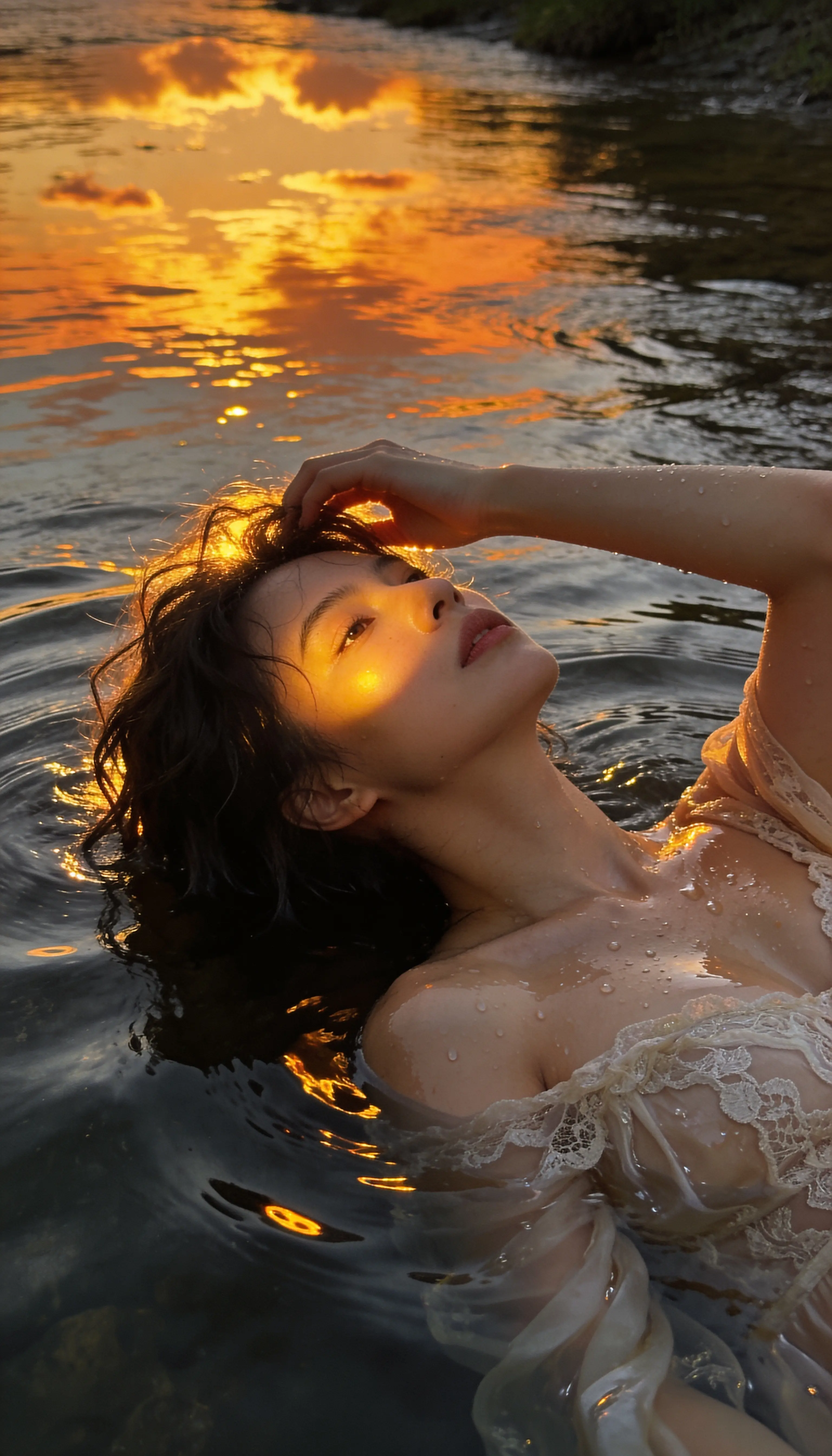
Image to Image example three

Start your Image to Image workflow fast

How to use Image to Image

Use Image to Image in three direct steps: start from a reference image, describe the transformation you want, and continue inside the ImageZ apps workspace to generate, compare, and refine the strongest result.

  1. 01

    Start from the image you already have

    Begin with a reference image, rough source, product shot, portrait, or campaign visual so the Image to Image workflow has something concrete to transform instead of starting from zero.

  2. 02

    Describe the change you need

    Use the page to define the restyle, cleanup, visual shift, or editing direction you actually want, then carry that prompt into the apps workspace so the transformation stays aligned with the original intent.

  3. 03

    Continue in Apps with the right mode ready

    Enter the workspace with Image to Image already prepared, then refine, compare, and export the version that best matches the revision, campaign, product, or variant you want to ship.

More Than Just Image to Image

Explore the next ImageZ workflows for generation, cleanup, background removal, and upscale once your Image to Image edit direction is in place.

Text to Image preview

Text to Image

Turn prompts into campaign visuals, product imagery, posters, and concept art in a focused text to image workflow.

AI Background Remover preview

AI Background Remover

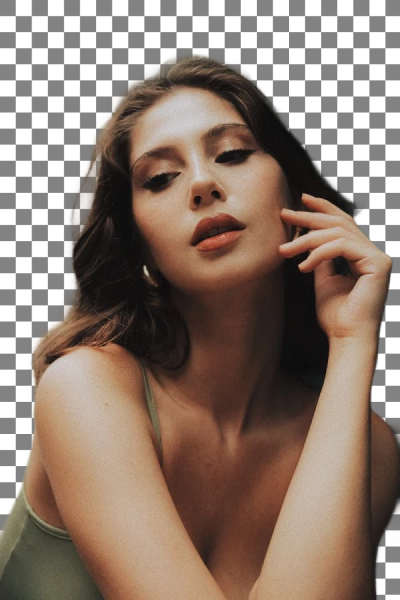
Remove backgrounds from images, export transparent PNG cutouts, create clean product photos, and continue editing in one focused workflow.

AI Image Upscaler preview

AI Image Upscaler

Upscale images, sharpen blurry visuals, improve detail for product photos and portraits, and continue editing in one workflow.

FAQs about Image to Image

Common questions about Image to Image, prompt-based transformation, reference images, and how this landing page hands the task into the ImageZ workspace.

1

What does Image to Image mean in ImageZ?

Image to Image in ImageZ is a focused landing-page entry for transforming, restyling, or refining an existing image instead of starting from scratch.

2

Can Image to Image transform an existing image without starting from zero?

Yes. That is the core purpose of Image to Image. You begin with one or more reference images, describe the change with a prompt, and continue in the apps workspace where the real editing flow runs.

3

Can Image to Image preserve subject or composition while changing style?

That is one of the main reasons people use Image to Image. The workflow is designed to start from the existing visual direction and then move it into a new style, scene, or edit path without forcing a complete restart.

4

Is Image to Image useful for product visuals, campaigns, and variants?

Yes. Product refinements, campaign remixes, and structured variants are some of the clearest use cases because they all benefit from starting from an existing image and changing it in a more controlled way.

5

Can I use more than one reference image in Image to Image?

Yes. The current Image to Image workflow supports multiple uploaded reference images, which makes it more flexible for controlled transformations and multi-source direction setting.

6

Does this page edit the image directly?

The landing page captures the Image to Image intent and forwards the task into the real ImageZ apps workspace, where the actual editing workflow runs.

7

What can I do after Image to Image finishes?

Once the transformed image is in a strong place, you can continue in ImageZ for background removal, upscale, and other follow-up image workflows instead of stopping at the first edit.

Continue from Image to Image into the ImageZ workspace

This landing page is built to capture Image to Image intent first. The actual reference-led image transformation workflow continues in the matched ImageZ apps workspace.