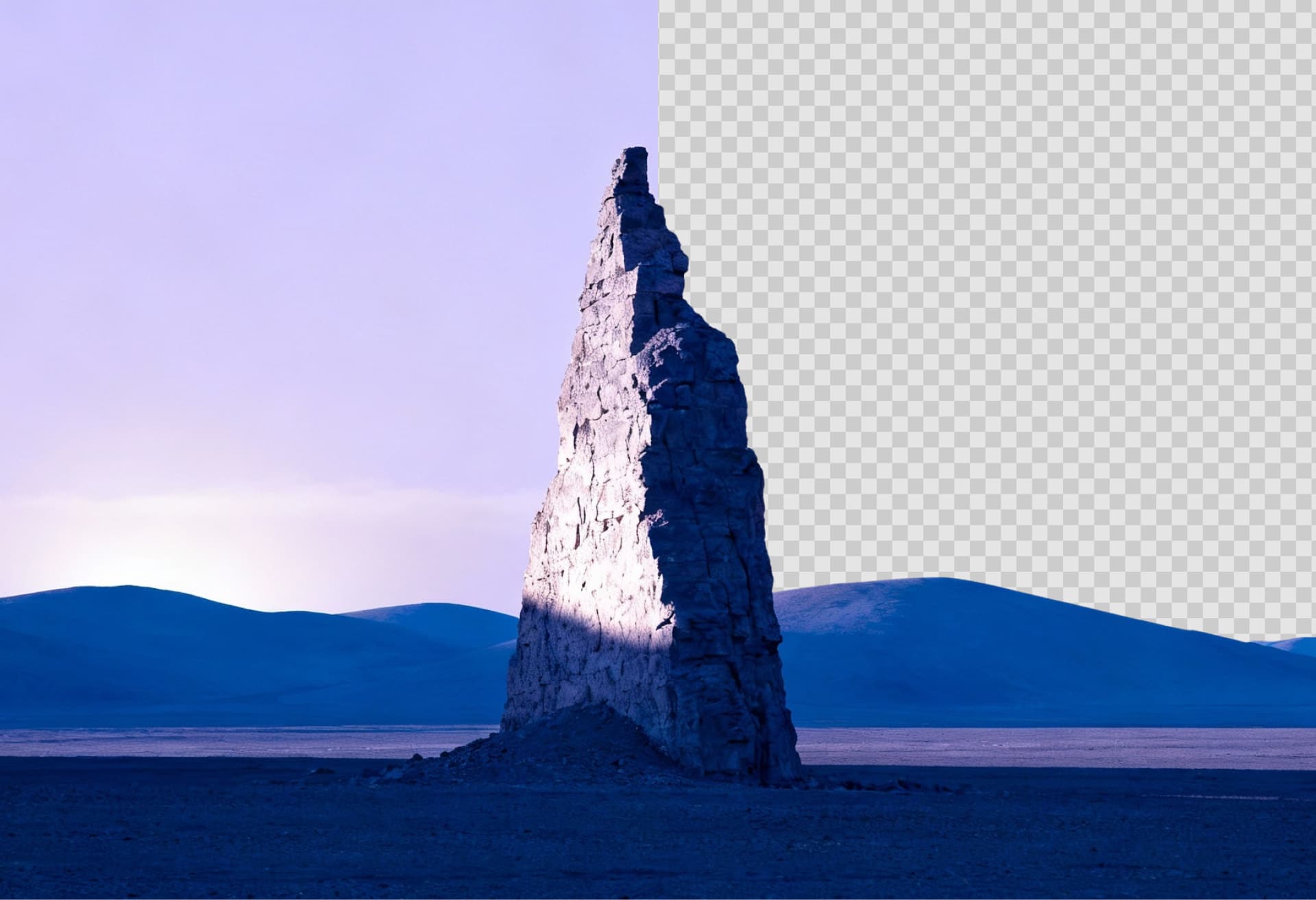
AI Background Remover for Transparent PNGs, Product Photos, and Clean Cutouts
ImageZ is an AI image editor that helps you generate images, edit existing visuals, remove backgrounds, and turn images into videos in one workflow.
AI Background Remover in ImageZ
What is AI Background Remover
AI Background Remover in ImageZ is a focused workflow for anyone who needs to remove background from image files quickly, keep subject edges usable, and move straight into the workspace with the right remover mode already selected. It is built for transparent PNG exports, white-background product images, branded cutouts, and follow-up editing instead of stopping at a one-click preview.
AI Background Remover Use Cases
What can you do with AI Background Remover
Use AI Background Remover for portraits, headshots, profile photos, creator assets, and campaign visuals where skin edges, hair detail, and a natural transparent PNG result matter.
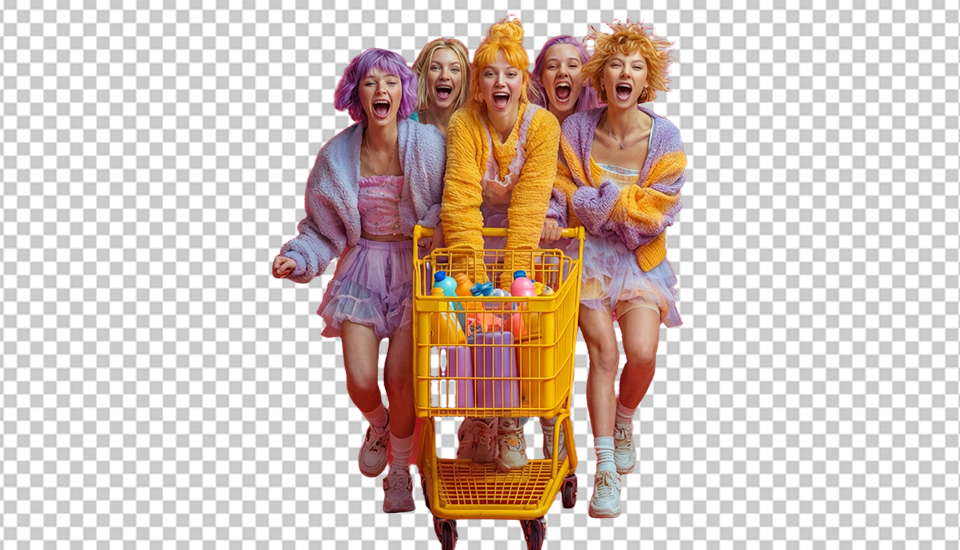
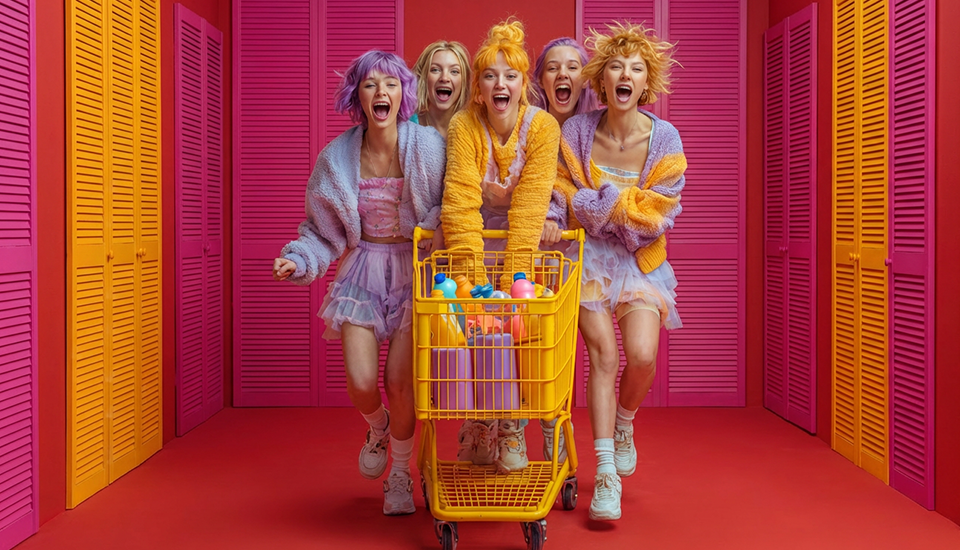
‹›
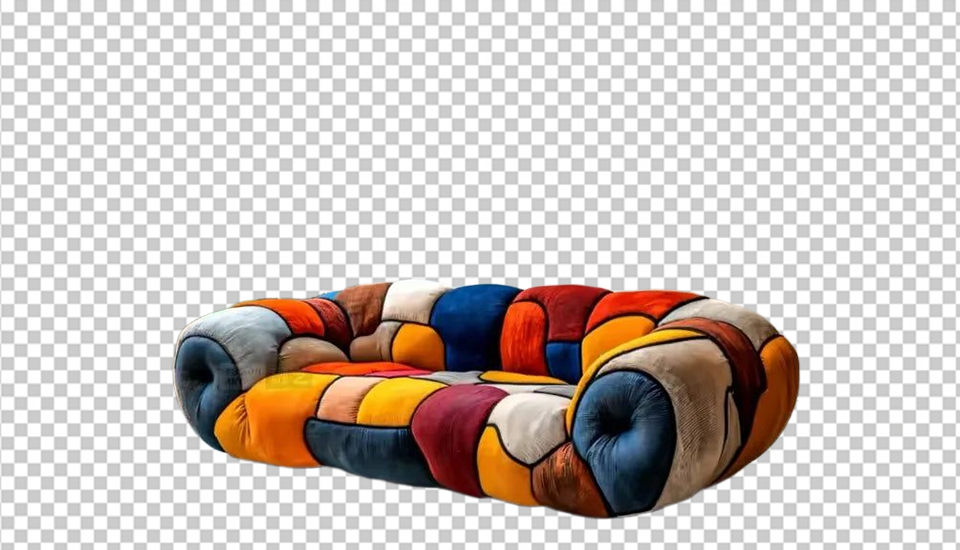
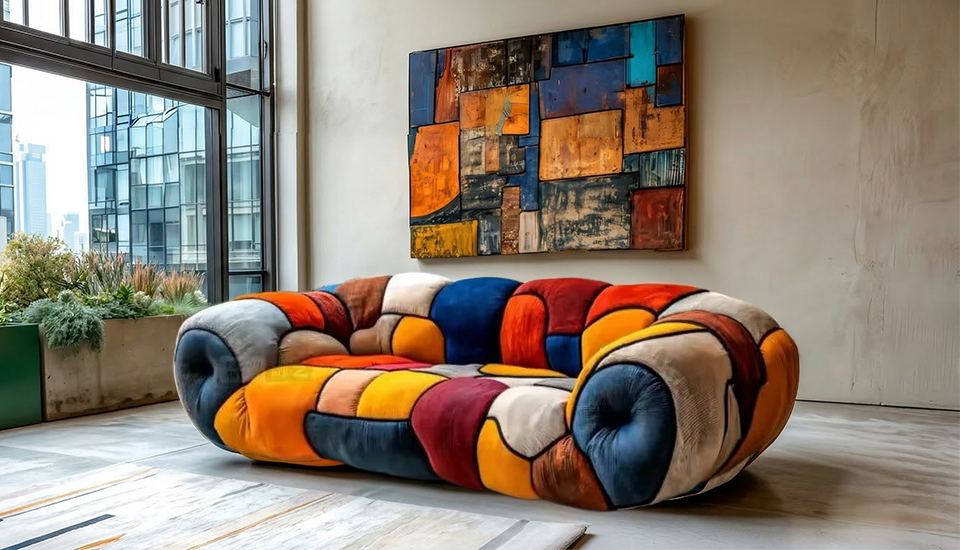
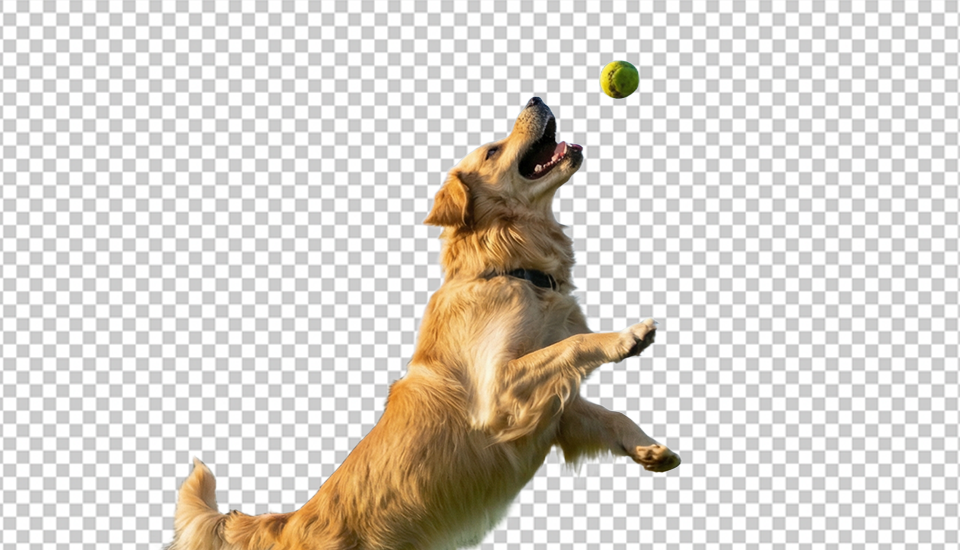
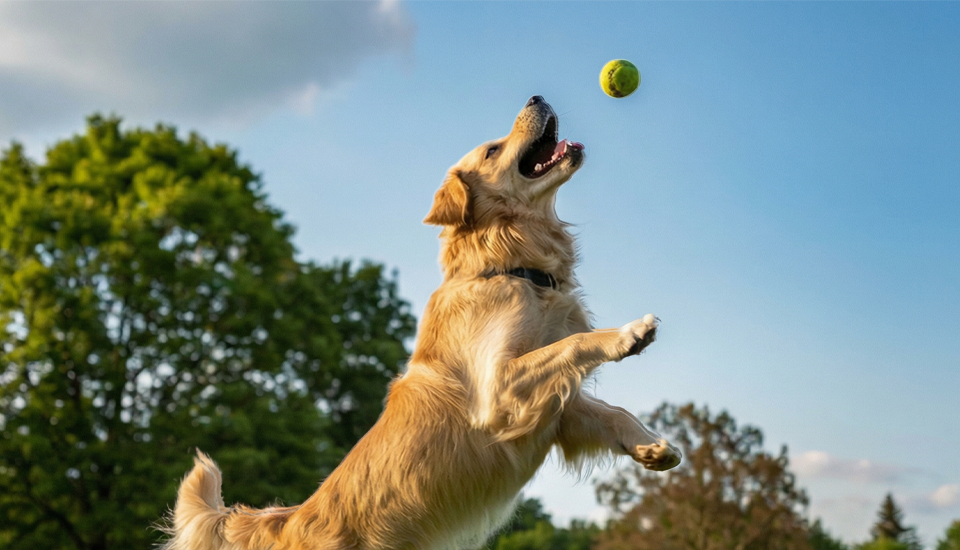
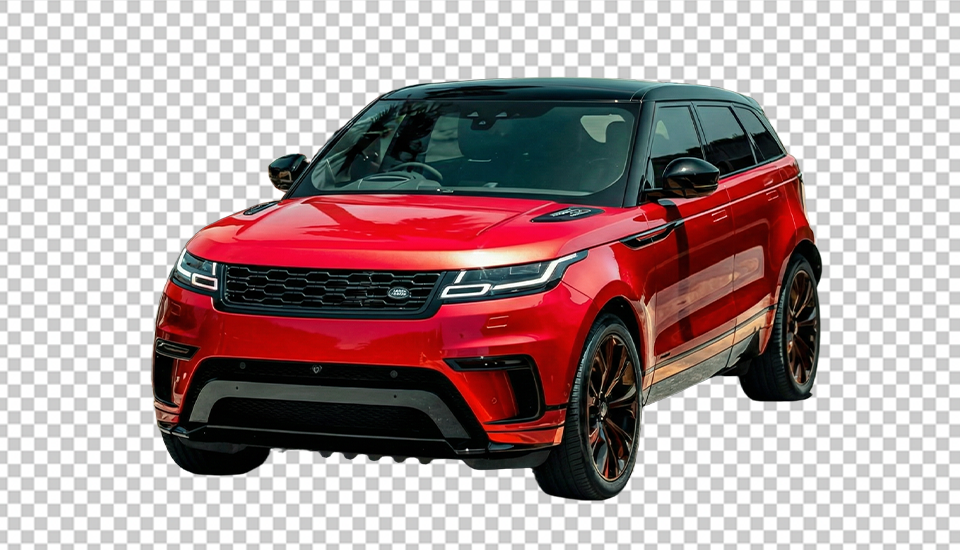
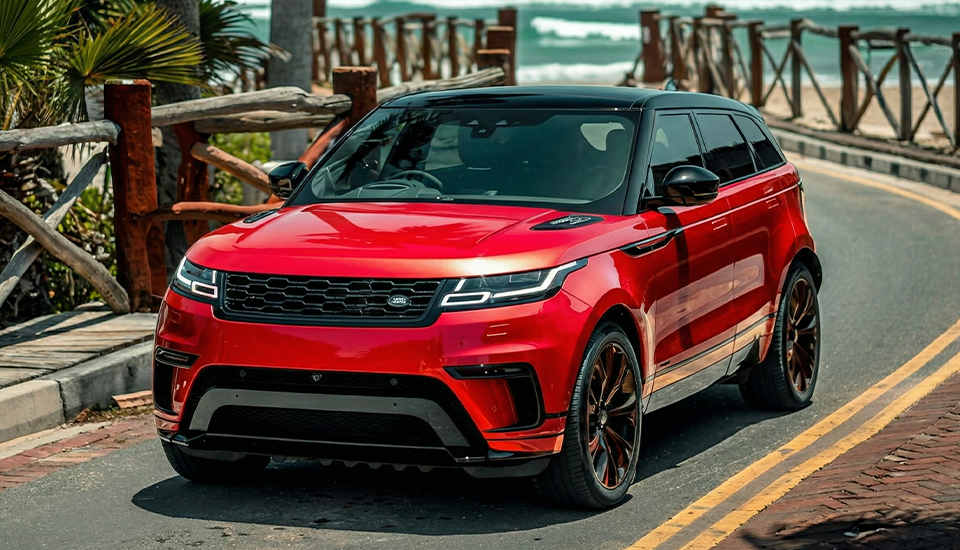
the best AI Background Remover
Why choose ImageZ for AI Background Remover
AI Background Remover should do more than erase pixels. It should preserve useful edges, support transparent PNG and controlled background outputs, and move the asset into the next ImageZ workflow without making users start over.
Remove background from image files without sacrificing edge quality
ImageZ positions AI Background Remover around real output quality. That matters for portraits, product photos, pets, and car images where hair, fur, curves, shadows, and complex outlines still need to look usable after the cutout.
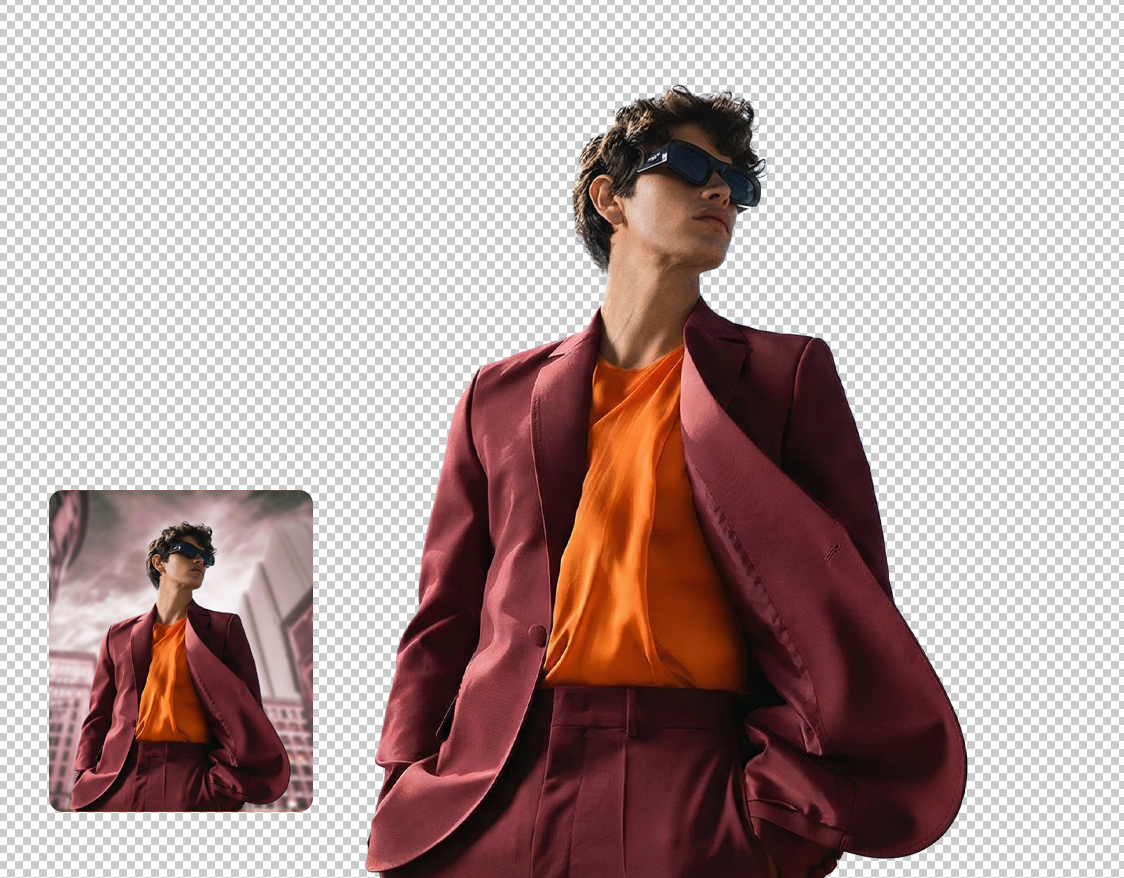
Export transparent PNGs or switch to cleaner background outputs
The underlying workflow supports more than a generic remove-background action. You can move toward transparent PNG exports, cleaner white-background results, and background variations that make the cutout easier to use in commerce and design.
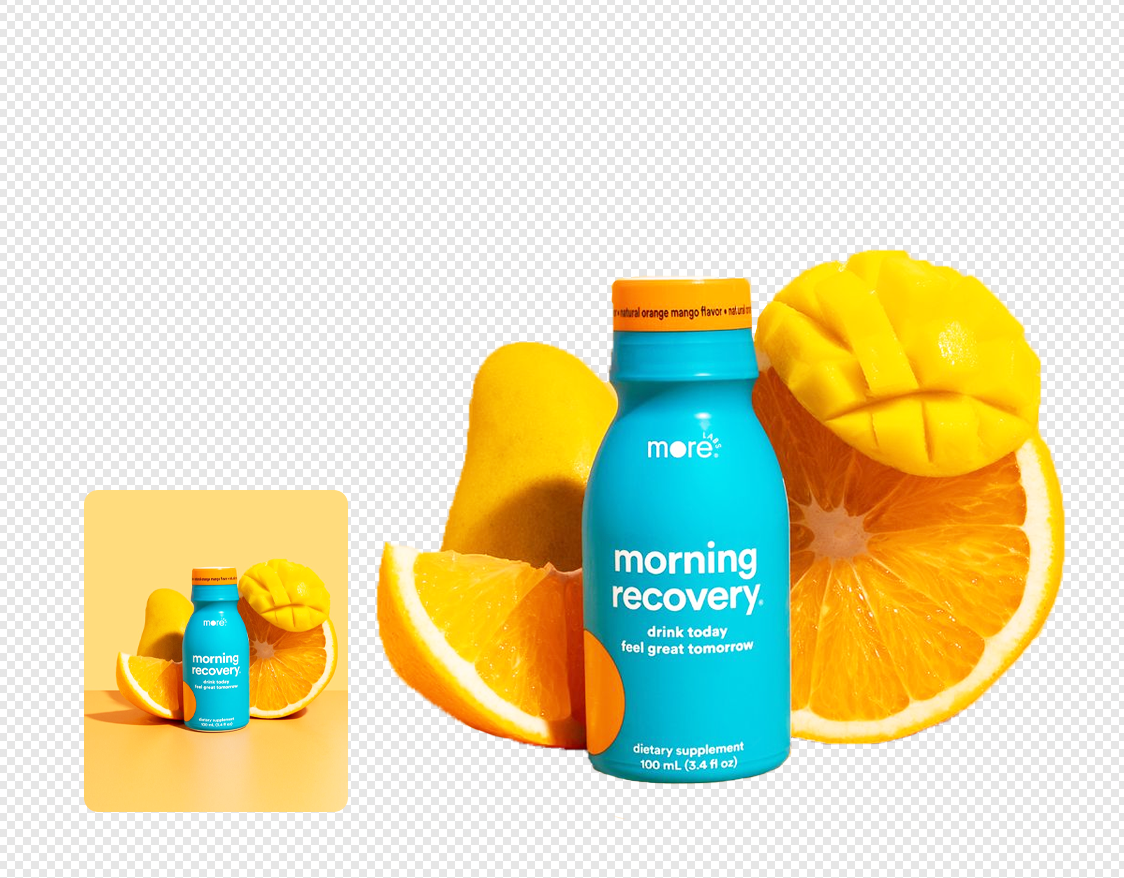
Run AI Background Remover, then keep editing in ImageZ
ImageZ does not treat AI Background Remover like a dead-end tool. Once the subject is isolated, the result can continue into cleanup, background changes, upscale, and other next actions inside the workspace. The sender also supports small-batch background removal for faster throughput.
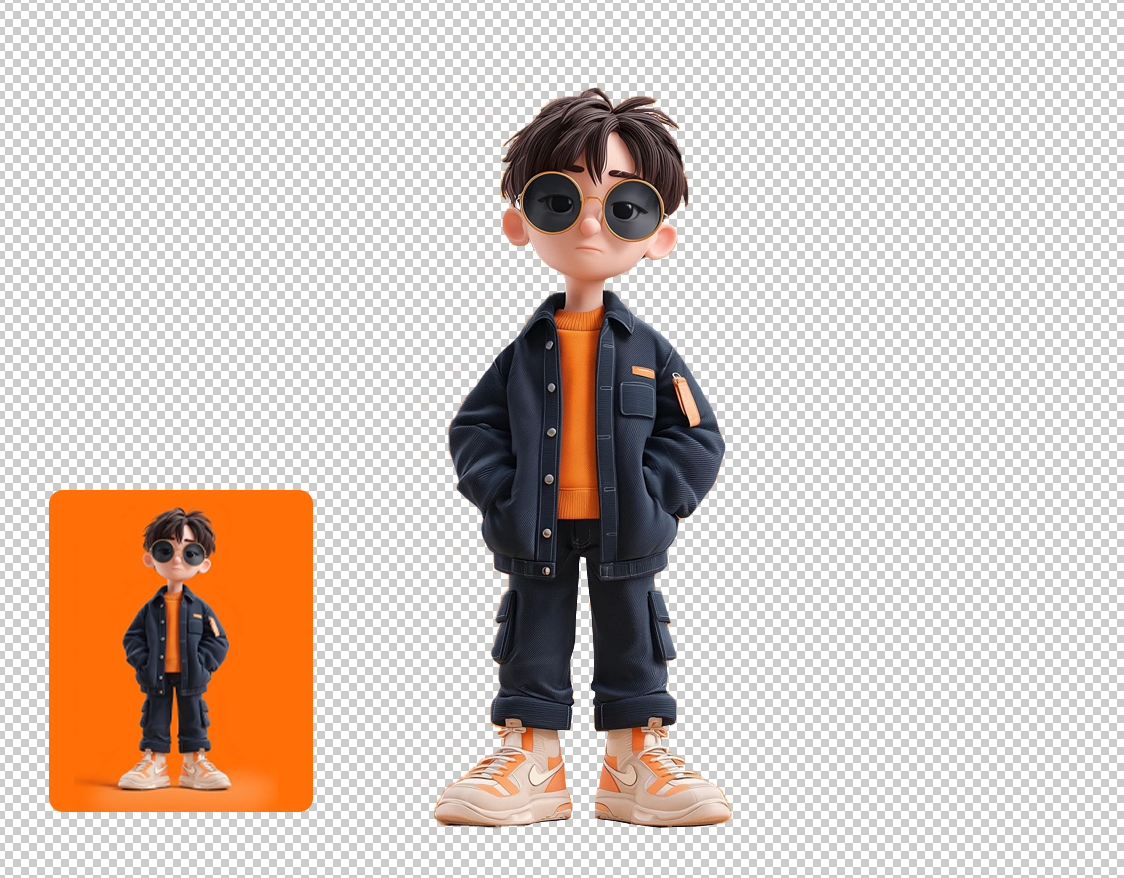
Start your AI Background Remover workflow fast
How to use AI Background Remover
Use AI Background Remover in three direct steps: upload the image, choose the background result you need, and export or continue editing in the ImageZ apps workspace.
- 01
Upload your image
Start with the image you want to isolate. AI Background Remover is designed for portraits, products, pets, cars, and other clear subjects that need a faster cutout workflow.
- 02
Choose the output you need
Use AI Background Remover to remove background from image files, export a transparent PNG, or move toward a cleaner white or styled background setup depending on the final use case.
- 03
Download or keep editing
Download the finished cutout when the asset is ready, or continue in ImageZ for cleanup, background swaps, and upscale work if the image still needs more refinement.
More Than Just an AI Background Remover
Keep the workflow moving after AI Background Remover with related ImageZ pages for image creation, transformation, cleanup, and upscale once the cutout is done.
Text to Image
Turn prompts into campaign visuals, product imagery, posters, and concept art in a focused text to image workflow.
Image to Image
Transform existing images with prompts, restyle visuals, remix campaigns, and create variants in one focused image to image workflow.

AI Image Upscaler
Upscale images, sharpen blurry visuals, improve detail for product photos and portraits, and continue editing in one workflow.
FAQs about AI Background Remover
Common questions about AI Background Remover, transparent PNG outputs, supported image types, and how the landing page hands the task into the ImageZ workspace.
1
What does AI Background Remover mean in ImageZ?
AI Background Remover in ImageZ is a focused landing-page entry for one clear task: remove background from image files, keep the subject usable, and then continue inside the matching apps workflow.
2
Can AI Background Remover export a transparent PNG?
Yes. The underlying workflow is configured around PNG output by default, which makes AI Background Remover a strong fit for transparent-background assets and layered follow-up design work.
3
Can I use AI Background Remover for white-background product photos?
Yes. AI Background Remover is well aligned with ecommerce and catalog use cases where the goal is a cleaner product cutout, a transparent result, or a white-background presentation for listings and storefronts.
4
Does AI Background Remover work for portraits, pets, and cars?
That is one of the main strengths of this landing page. The use-case structure is built around people, products, animals, and cars because those are common remove-background tasks with different edge-quality expectations.
5
Can I process more than one image in the AI Background Remover workflow?
Yes. The current ImageZ sender setup supports small-batch background removal, which makes AI Background Remover more practical for repeated product or asset cleanup work.
6
Does this page remove the background directly?
The landing page captures the request and sets the intent, while the real execution happens in the ImageZ apps workspace with AI Background Remover already selected.
7
What can I do after AI Background Remover finishes?
Once the subject is isolated, you can keep moving in ImageZ instead of stopping at the cutout. That includes follow-up cleanup, background changes, and upscale work inside the same broader workflow.
Continue from AI Background Remover into the ImageZ workspace
This landing page is built to capture AI Background Remover intent first. The actual remove-background workflow, transparent PNG handoff, and follow-up editing continue in the matched ImageZ apps workspace.