
ImageZ is an AI image editor that helps you generate images, edit existing visuals, remove backgrounds, and turn images into videos in one workflow.
AI Image Upscaler in ImageZ
AI Image Upscaler in ImageZ is a focused workflow for anyone who needs to upscale image quality, recover sharper detail, and make low-resolution visuals more usable without dropping into a generic editor first. It keeps the message narrow, proves what the result is for, and then opens the matched apps workspace with the upscale workflow already selected.
AI Image Upscaler Use Cases
AI Image Upscaler becomes easier to trust when sharper detail is tied to real output goals: cleaner product photos, stronger portraits, more print-ready images, and social visuals that no longer feel soft or compressed.
Why ImageZ
AI Image Upscaler should do more than enlarge an image. It should improve usable detail, make low-resolution assets easier to publish, and move the result into the next ImageZ workflow without extra friction.
People searching for AI Image Upscaler usually want a sharper, cleaner result fast. ImageZ meets that intent with a dedicated entry focused on image clarity, detail recovery, and stronger output quality instead of forcing users through unrelated tools first.
AI Image Upscaler is useful when a product photo, portrait, or campaign asset feels too soft for the next step. ImageZ frames that need clearly, then hands the user into the prepared apps workflow to continue the actual enhancement.

ImageZ does not treat AI Image Upscaler like an isolated dead end. The sharpened result can continue into other image workflows, and the sender also supports small-batch repeated enhancement work when multiple images need attention.

Start your AI Image Upscaler workflow fast
Use AI Image Upscaler in three direct steps: upload the image, define the quality goal, and continue in the ImageZ apps workspace to evaluate and export the sharper result.
Start with the source file you want to improve so the workflow is anchored to a real quality problem: blur, softness, compression, or low-resolution output that needs to look sharper.
Use the page to frame what the sharper result is for, whether that means product clarity, stronger portrait detail, print readiness, or more usable social media visuals.
Continue inside the ImageZ workspace with AI Image Upscaler already selected, then review the enhanced result and export when the image is ready to publish or reuse.
Explore the next ImageZ workflows for generation, transformation, cleanup, and continued image refinement after AI Image Upscaler has already improved image quality.
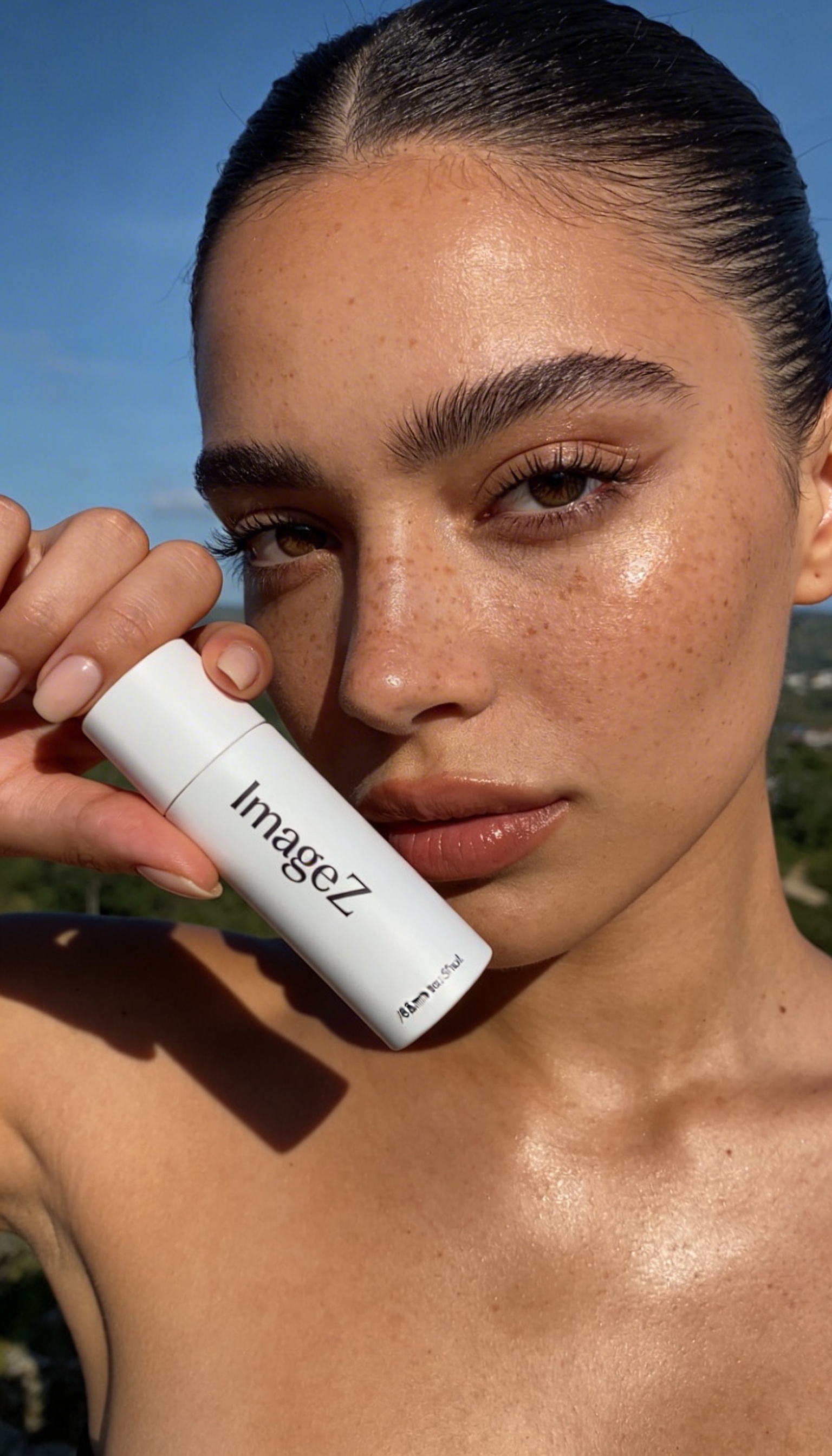
Turn prompts into campaign visuals, product imagery, posters, and concept art in a focused text to image workflow.
Transform existing images with prompts, restyle visuals, remix campaigns, and create variants in one focused image to image workflow.

Remove backgrounds from images, export transparent PNG cutouts, create clean product photos, and continue editing in one focused workflow.
Common questions about AI Image Upscaler, image quality improvement, supported use cases, and how this landing page hands the task into the ImageZ workspace.
AI Image Upscaler in ImageZ is a focused landing-page entry for image enhancement, clarity recovery, and sharper output before the user continues inside the apps workspace.
Yes. The point of AI Image Upscaler is not just to make the image bigger. It is to make the image more usable by improving detail, sharpness, and overall clarity in the ImageZ workflow.
Yes. Product images and portraits are two of the clearest use cases because users often need better detail, cleaner edges, and stronger presentation quality before publishing or reusing the image.
Yes. AI Image Upscaler is well suited to images that need to hold up better in print materials, presentations, ads, covers, and social posts where softness or compression reduces quality.
That is one of the main reasons to use it. This workflow is designed to make lower-quality images more usable by improving clarity and perceived detail before the asset moves into the next step.
Yes. The current ImageZ sender setup supports small-batch repeated enhancement work, which is useful when multiple images need a similar clarity boost.
The landing page captures AI Image Upscaler intent and routes the user into the real ImageZ apps workspace, where the actual upscale workflow runs.
This landing page is built to capture AI Image Upscaler intent first. The actual image enhancement and sharper-output workflow continues in the matched ImageZ apps workspace.


